Help — Organization
Manage your workspace: team, roles, apps, and API access
Organization overview with member count, recent activity, active applications, and quick actions.
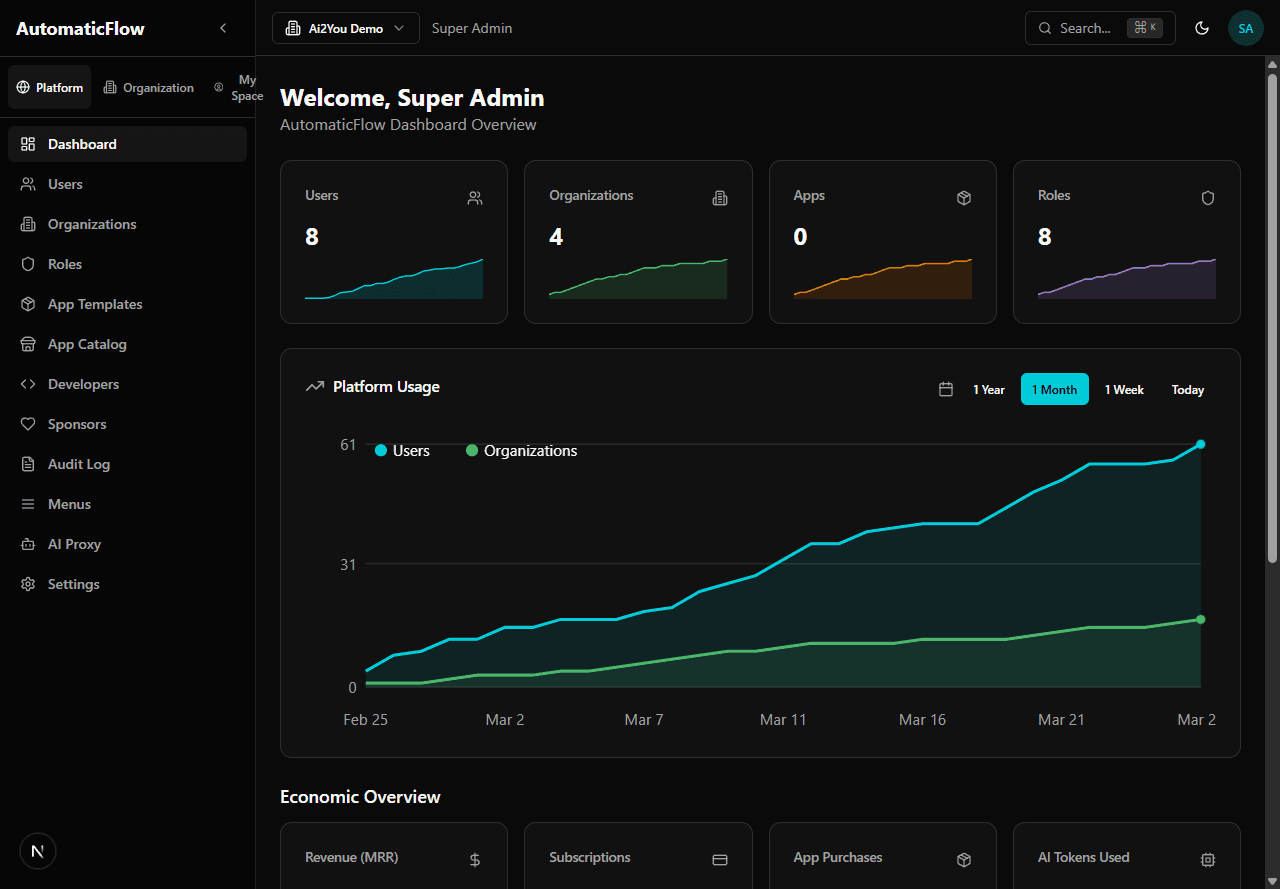
Dashboard home — platform stats, usage chart, and economic overview
Manage users within your organization.
- List members: table with name, email, role, last login, status
- Invite member: fields for Name, Email, Role assignment (sends invitation email)
- Edit member: change role, toggle active/inactive
- View member: profile, activity, permissions
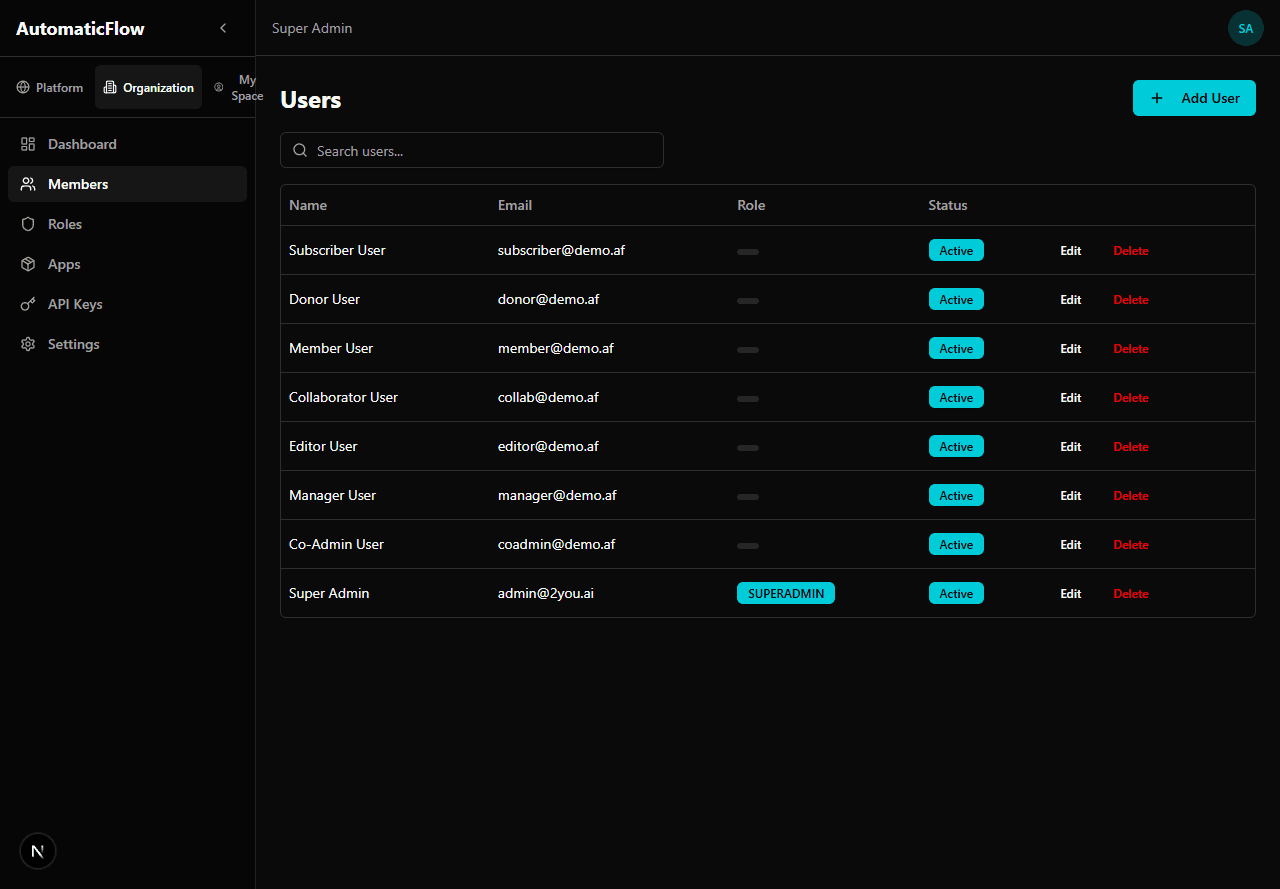
Members page — list, search, and manage organization users
Who can access:
- Admin/Co-Admin: Full CRUD (create, edit, delete members)
- Manager: View members, invite new ones (cannot edit roles or delete)
Role Hierarchy (what you can assign):
Admin — Can assign all roles
Co-Admin — Can assign Manager and below
Manager — Cannot assign roles
Configure organization-specific roles and permissions.
- List roles: table with role name, level, member count
- Create role: custom role with selected permissions
- Edit role: add/remove permissions via checkboxes
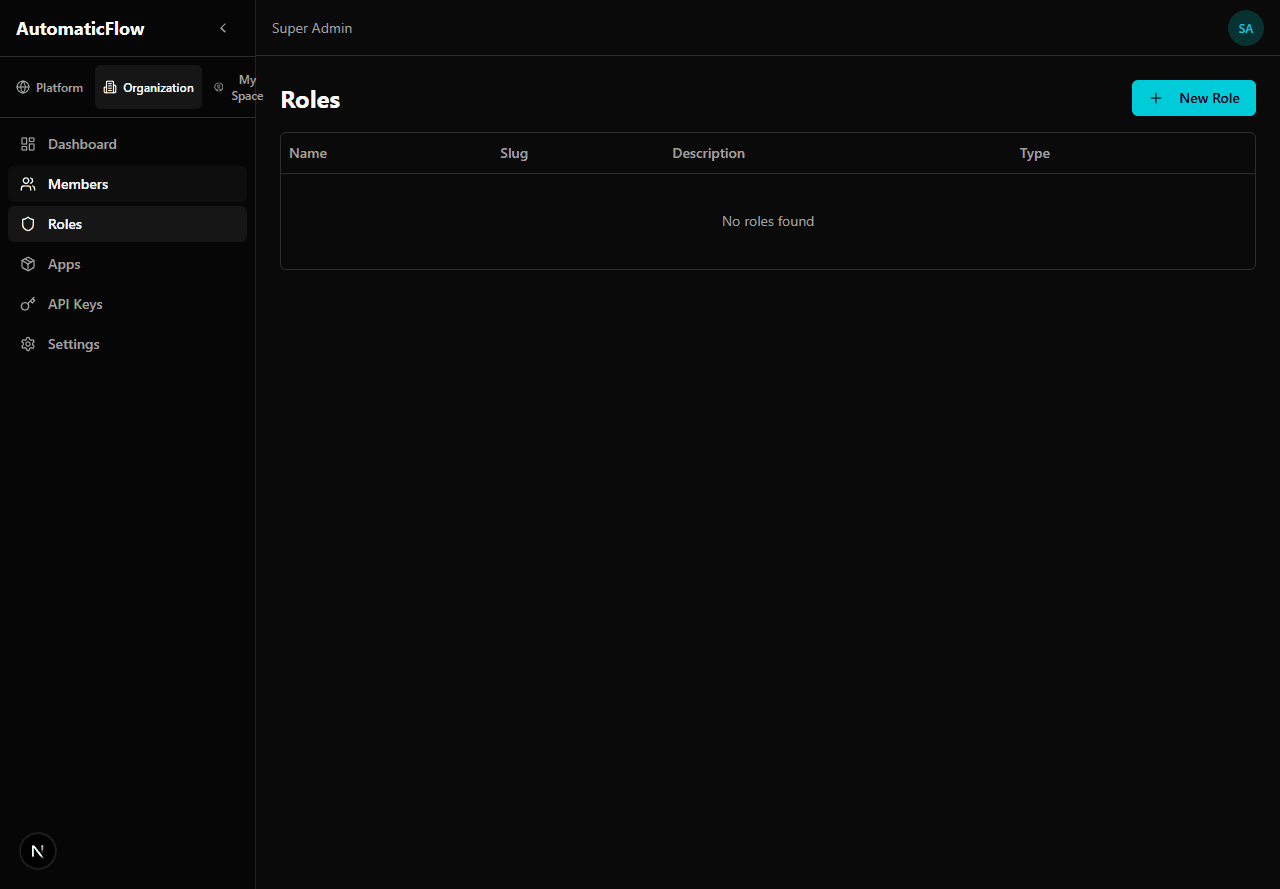
Roles page — manage organization-specific roles
Permission Groups:
Manage installed application instances in your workspace.
- List instances: cards/table with name, status, template, last active
- Install new app: select from catalog, configure env, set access, deploy
- View instance: status, health, logs
- Instance settings: configure env, restart
Status indicators:
Auto-stop: Apps without traffic for 12 hours are automatically stopped to save resources. They restart automatically on next access (no data loss).
Browse and install applications from the marketplace.
- Grid view with app cards
- Filter by category (Productivity, AI, Communication, etc.)
- Search by name or description
- View pricing (monthly, annual, one-time, lifetime)
- 30-day free trial available for most apps
Generate and manage API access keys for integrations.
- List keys: table with name, prefix, type, created date, last used
- Create key: generate new API key (shown once — copy and store securely)
- Revoke key: permanently disable a key
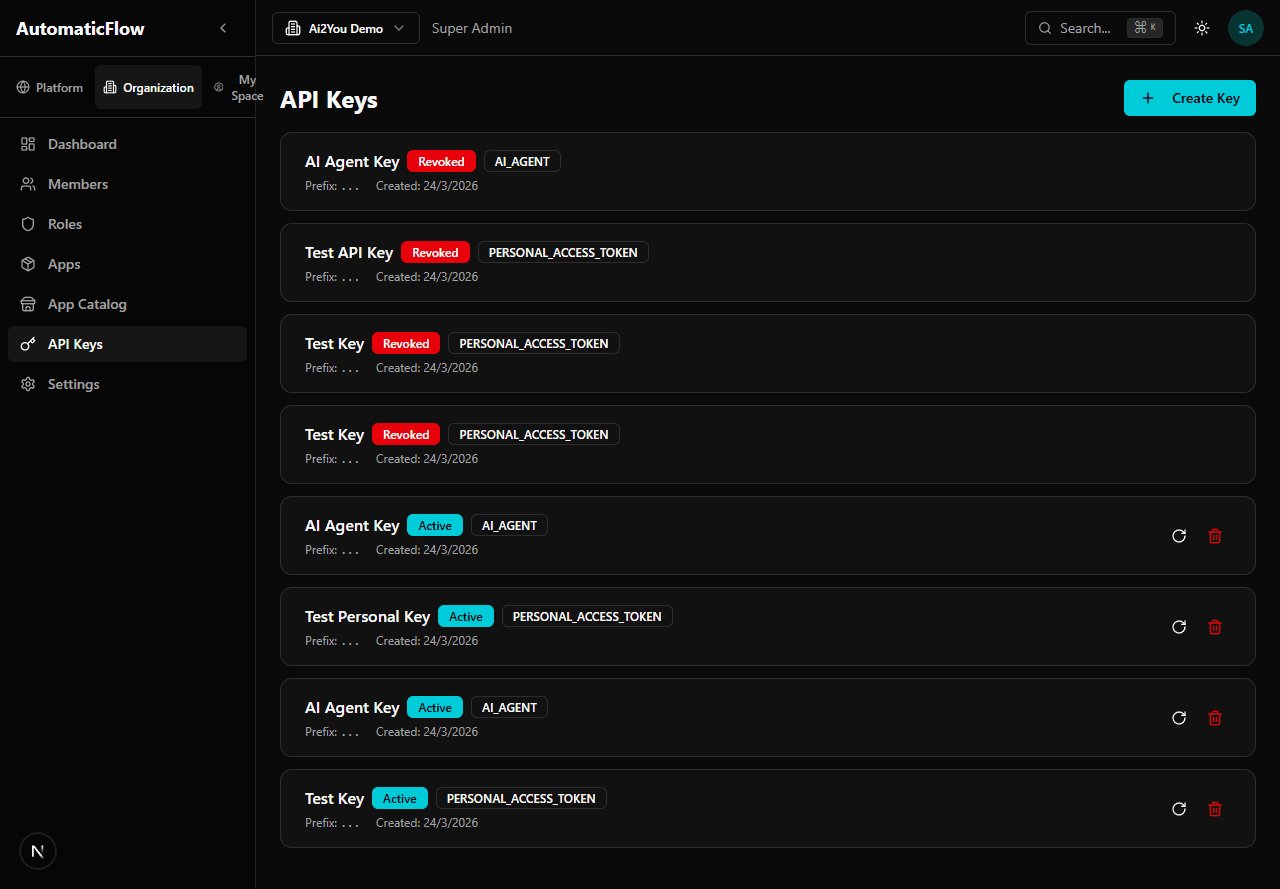
API Keys — manage standard and AI Agent keys
Key Types:
- Standard — For general API access
- AI_AGENT — For AI systems and automated tools with specific rate limits
Organization configuration.
- Organization name, description, logo
- Billing information
- Notification preferences
- Data export (GDPR compliance)
How do I invite a new member?
Go to Members and click "Add User". Fill in their name, email, and select a role. An invitation email will be sent automatically.
Can I create custom roles?
Yes, as an Admin you can create custom roles with specific permission sets. Go to Roles → New Role.
What happens when I revoke an API key?
The key is permanently disabled. Any system using it will immediately lose access. This cannot be undone — create a new key if needed.
How do I switch between organizations?
Select the ORG tab in the sidebar and use the dropdown selector below the tabs to switch organizations.